Can you set Screen Time limits per child on one iPad?
You have one iPad and two or three kids. At some point you opened Screen Time looking for a switch-user button so the 10-year-old could get more time than the 5-year-old. You didn’t find one.
A note from us: We have one iPad and two kids at home too. For a while, the end of every turn meant someone saying “she used my time,” and a parent stepping in to sort it out. That’s what sent us looking for a fix, and what you’ll find below is everything we learned along the way.
Here’s the straight answer first, then the workarounds that actually hold up on a busy weeknight.
The short answer: not with Screen Time alone
No. On a regular family iPad, Apple’s Screen Time can’t give each child their own daily limit on the same device.
Screen Time settings belong to the Apple Account signed in on the iPad. A personal iPad runs one account at a time. So whatever limits you set apply to whoever picks it up.
iPads do have a multi-user mode called Shared iPad. It’s built for schools and businesses that manage their devices through Apple’s management tools. It isn’t something you can turn on at home.
So if your 9-year-old should get 90 minutes and your 5-year-old 45, Screen Time sees one iPad and one bucket of minutes. We go deeper into this in what Apple’s tools can and can’t do for multiple kids on one iPad.
What Screen Time can do on a shared iPad
It’s still worth setting up. Think of it as the base layer for the rules that are the same for everyone: bedtime, no surprise purchases, age-appropriate content.
Here’s how on iPadOS 18:
- Open Settings > Screen Time. If it’s off, turn on App & Website Activity.
- Tap Lock Screen Time Settings and create a passcode only you know. Make it different from the iPad’s passcode.
- Tap Downtime and set a schedule. For example, 8:00 p.m. to 7:00 a.m. on school nights.
- Tap App Limits > Add Limit, pick a category like Games, and set the daily time.
- Tap Always Allowed and add the apps that should keep working, like a reading app or the school app.
- Tap Content & Privacy Restrictions to set app age ratings and block in-app purchases.
One tip: set content ratings for your youngest. The older kids can live with that on a shared device. The reverse is harder to undo.
What it can’t do
- Tell your kids apart. The iPad doesn’t know who’s holding it.
- Split the minutes. If the older one uses 40 minutes of Games before school, the little one finds 5 minutes left after dinner.
- Show who used what. The weekly report covers the whole iPad, not each child.
- Get you out of the referee job. You’re still the one deciding whose turn it is.
6 workarounds that actually work
1. Change the limit before each turn
Before handing over the iPad, go to Settings > Screen Time > App Limits, tap the limit, and adjust the time. It works. It’s also one more chore, and it falls apart the first night you forget.
Best for: two kids, short weekend sessions.
2. Set limits for the youngest, approve extra for the older ones
Set App Limits to fit your youngest. When a limit runs out, the screen shows an Ask For More Time option. Since the iPad uses your account and your Screen Time passcode, you can enter the passcode and approve 15 more minutes, an hour, or the rest of the day.
The older kid comes to you, you type the code, done. Fair enough, as long as you’re home and nearby.
Best for: a clear age gap and a parent who’s usually around.
3. Guided Access with a time limit (great for preschoolers)
Guided Access locks the iPad into one app, and you can add a timer.
- Go to Settings > Accessibility > Guided Access, turn it on, and set a passcode.
- Open the app your child will use.
- Triple-click the top button (or the Home button on older iPads).
- Tap Options, turn on Time Limit, set the minutes, and tap Start.
When time’s up, the app locks until you enter the passcode. It only works one app at a time, which is exactly what most 3- to 6-year-olds need anyway.
Best for: little ones who should stay in one app.
4. Switch Apple Accounts between kids
With Family Sharing, each child can have their own Apple Account with their own Screen Time limits. In theory, you sign out of one and into another for each turn.
In practice, signing out of an Apple Account on an iPad takes a few minutes and affects iCloud data, apps, and settings. Most families give up within a week. We compare the options in one Apple Account or separate ones.
Best for: honestly, very few households.
5. Go low-tech: turn chart, timer, and clear rules
No settings required:
- A weekly chart with each kid’s daily minutes.
- A visual timer on the counter that everyone can see.
- A rotating turn order, so nobody always goes first.
- One rule for breaks: the timer pauses when the iPad goes down, and you’re the one who pauses it.
It’s cheap and it works, but you’re still the clock. More ideas in how to share one iPad between siblings without the daily fight.
Best for: families who want structure before adding any app.
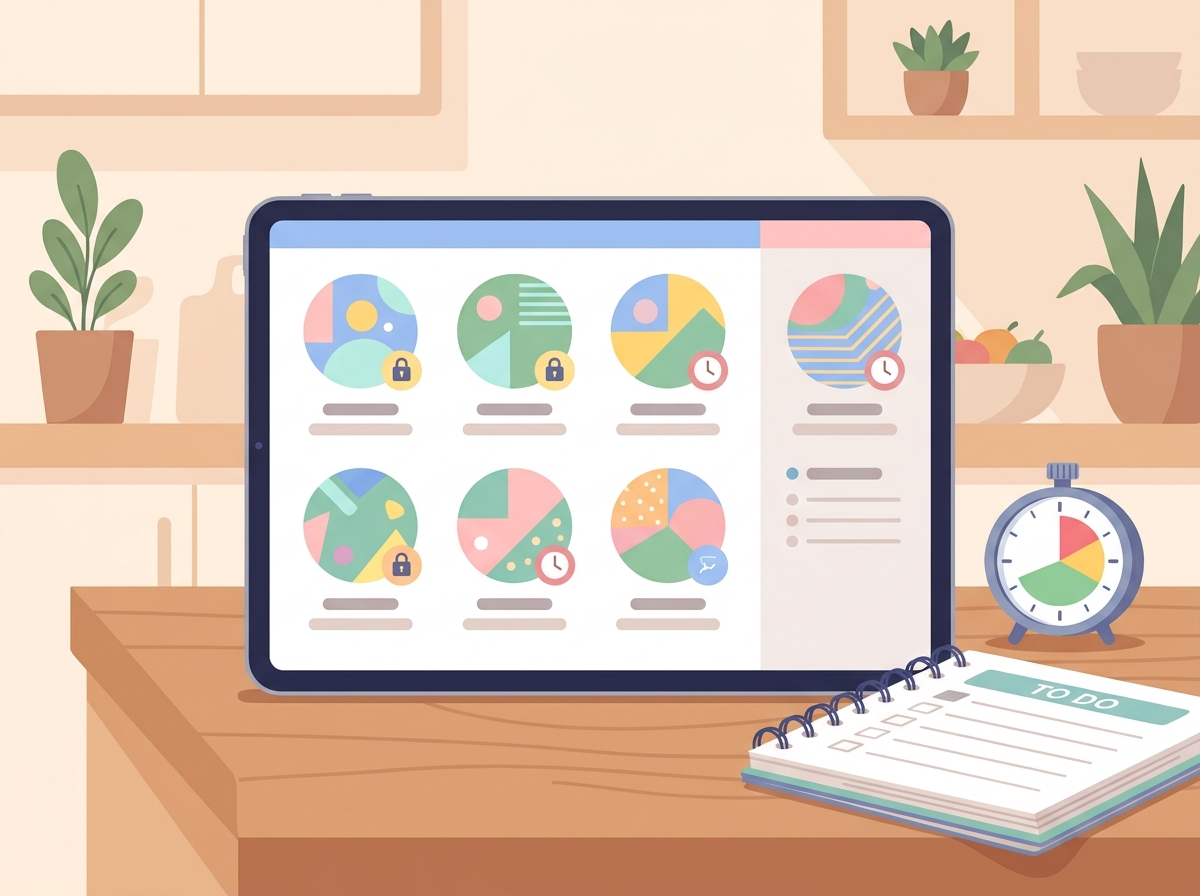
6. Use a per-child profile app
This is the gap we built OnePad Kids for. Each child gets their own profile, daily limit, apps, and PIN on the same iPad (iPadOS 18 or later).
- Time only counts while that child is using their apps. If they walk away, the session closes on its own after 15 minutes without play.
- Warnings at 5 minutes and 1 minute, then their apps lock through Screen Time.
- Downtime schedules, chores that add minutes, always-allowed apps, and 7- and 30-day reports per child.
- Parent mode with a master PIN and optional Face ID.
- No accounts, no ads, no tracking. The data stays on the iPad.
Best for: three or more kids, or daily fights over whose minutes are whose.
Quick comparison
| Option | Different limit per kid? | Effort for you | Best for |
|---|---|---|---|
| Change limit each turn | Yes, manually | High | Occasional use |
| Limits for youngest + approve extra | Sort of | Medium | Clear age gap |
| Guided Access timer | Per session | Medium | Ages 3 to 6 |
| Switch Apple Accounts | Yes | Very high | Rarely practical |
| Turn chart and timer | Yes, on paper | Medium | Starting out |
| Per-child profile app | Yes | Low after setup | 3+ kids, daily use |
Which one should you pick?
- Two kids, close in age, light use: Screen Time as the base, plus approving extra time when needed.
- A preschooler and an older sibling: Guided Access for the little one, regular limits for the older one.
- Three or more kids, or the fights happen every day: a per-child profile setup. OnePad Kids covers up to 6 kids on one plan, can be shared with Family Sharing, and has a 7-day free trial.
One tip that helps no matter what
Shorten Auto-Lock. Go to Settings > Display & Brightness > Auto-Lock and pick 2 minutes. A game left open on the couch won’t keep the screen on and eat into anyone’s time.
And say the 5-minute warning out loud, even if the iPad already shows it. Kids handle the end of a turn better when it isn’t a surprise.
Give each kid their own time on one iPad: check out OnePad Kids and try it free for 7 days.